Guide
Settings
Where to find it: Operations → Settings
Settings pages are for authorized administrators. Use them to manage policies, updates, network definitions, and users.
Policies Dashboard
This dashboard summarizes your policy coverage and recent policy events across Configuration, SCADA, Network, and File Related categories.
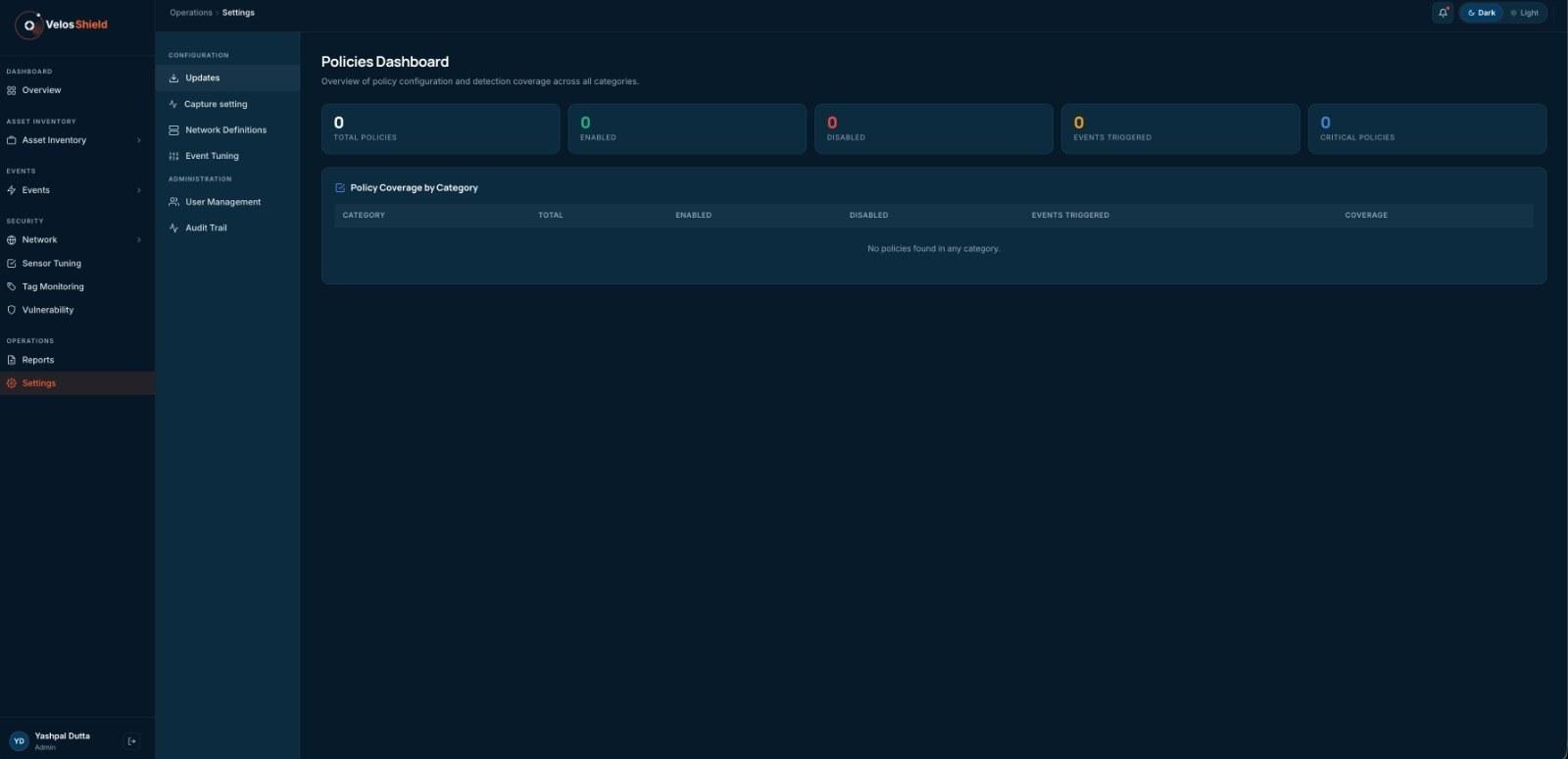
Figure 20. Settings: Policies Dashboard.
Configuration
Updates
Where to find it: Operations → Settings → Updates → Manual Upload
Keep Velos Shield’s knowledge up to date on the Updates page. You can update in two ways:
- Internet — Velos Shield checks for and downloads updates itself. Use this when the portal is connected to the internet.
- Manual Upload — you upload the update file yourself. Use this for offline systems or when updates must be tightly controlled.
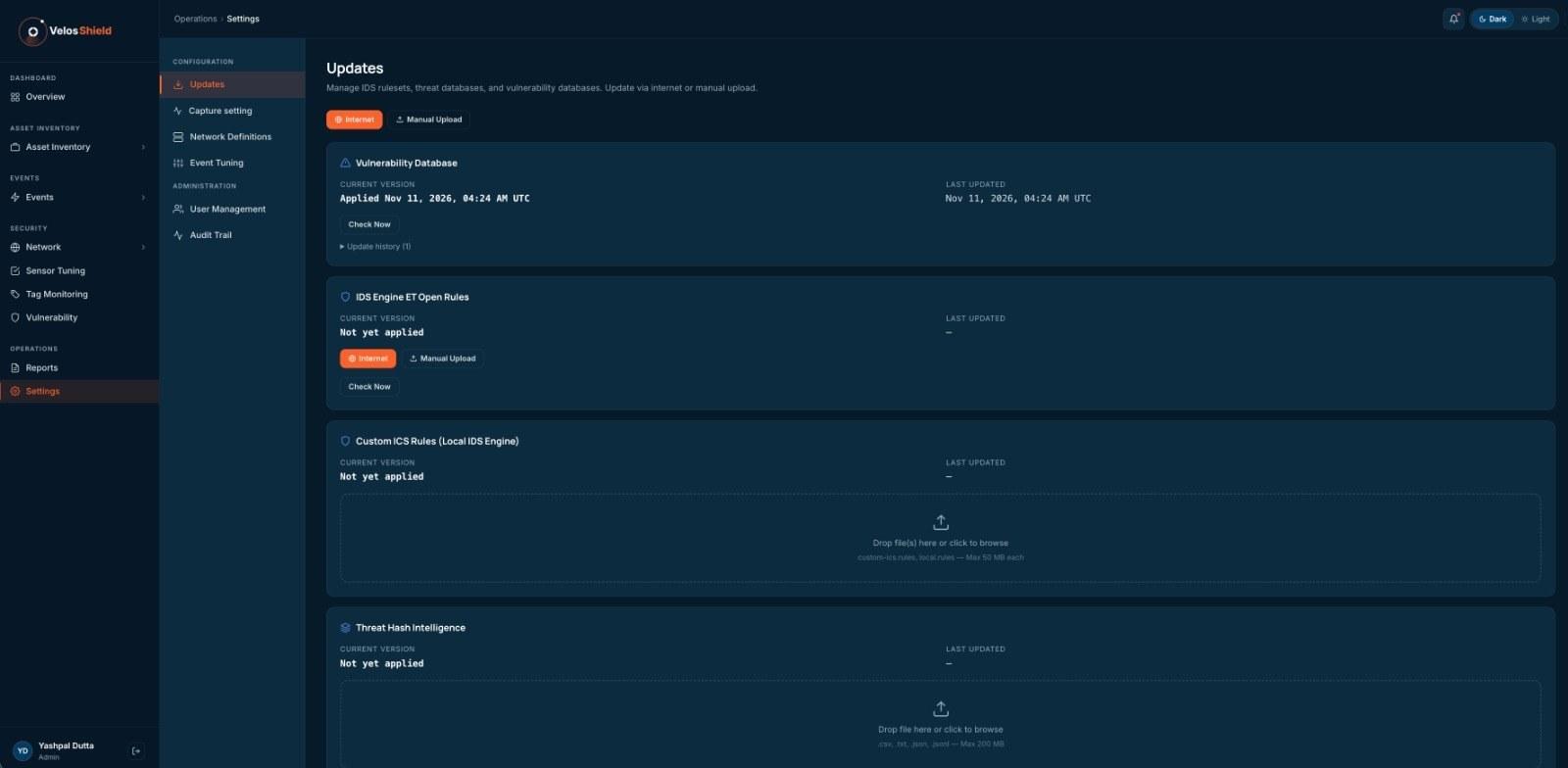
Figure 21. Updates using the Internet method.
What can be updated
| Item | What it is |
|---|---|
| Vulnerability Database | The list of known weaknesses (CVEs) used to check your devices. |
| IDS Engine ET Open Rules | A community-maintained set of detection rules used by the intrusion detection system. |
| Custom ICS Rules (Local IDS Engine) | Detection rules for industrial systems that you or your team write yourselves. |
| Threat Hash Intelligence | A list of digital fingerprints (hashes) of known malicious files. |
| Malicious IP Intelligence | A list of IP addresses known to be used for attacks. |
| File Scanner Rules (YARA) | Patterns, called YARA rules, used to recognize malicious files. |
Capture Settings
This page helps manage capture rules for this sensor. Rules can be added, validated and then applied.
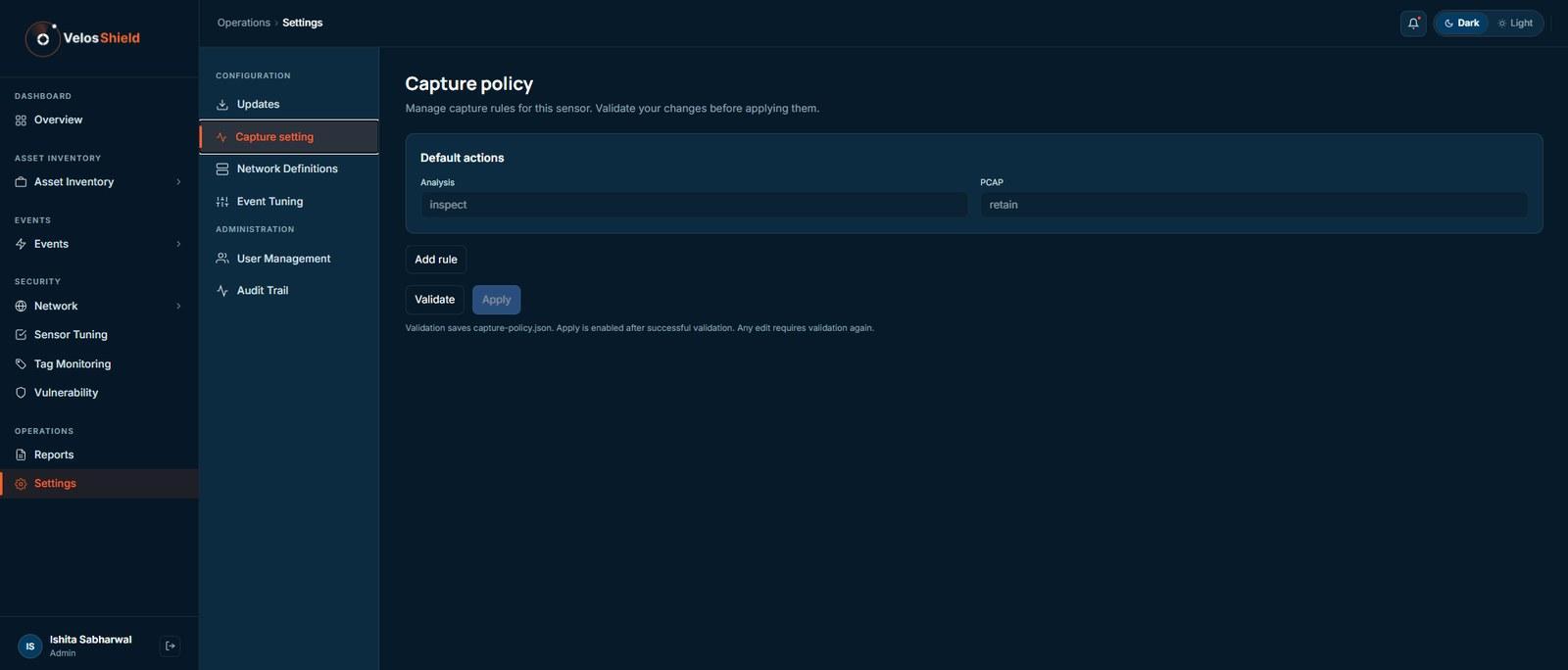
Figure 22. Settings: Capture Policy.
Network Definitions
Use Network Definitions to tell Velos Shield which address ranges belong to your monitored network. The detection engine uses these ranges to understand what is “inside” your network. The page shows your existing ranges, an Add Network Range option, an Apply & Restart button, and a preview of the detection engine’s configuration.
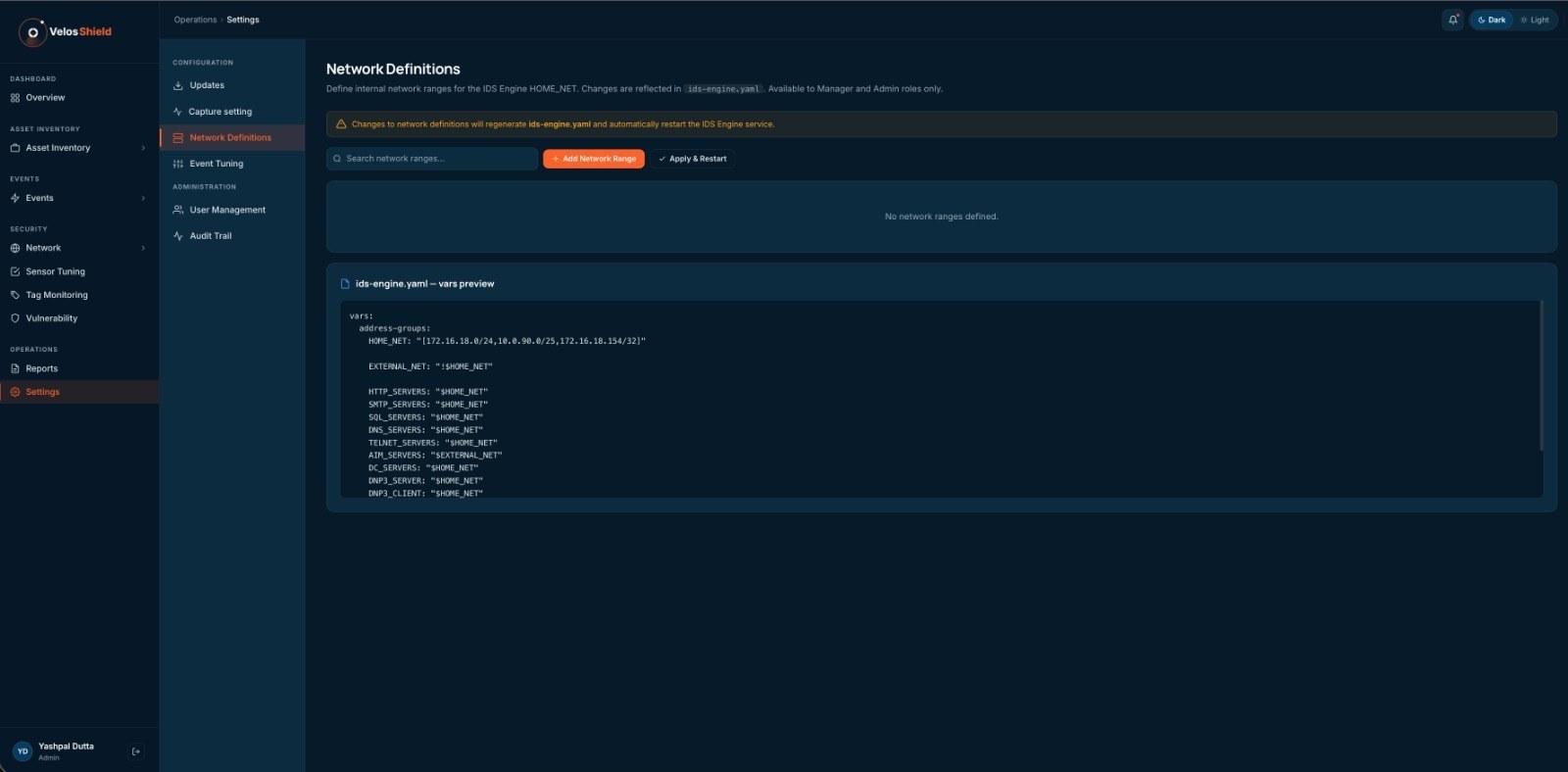
Figure 23. Settings: Network Definitions.
Administration
User Management
Where to find it: Operations → Settings → Administration → User Management
User Management shows the available roles, what each role can do, the existing user accounts, and the Create User form.
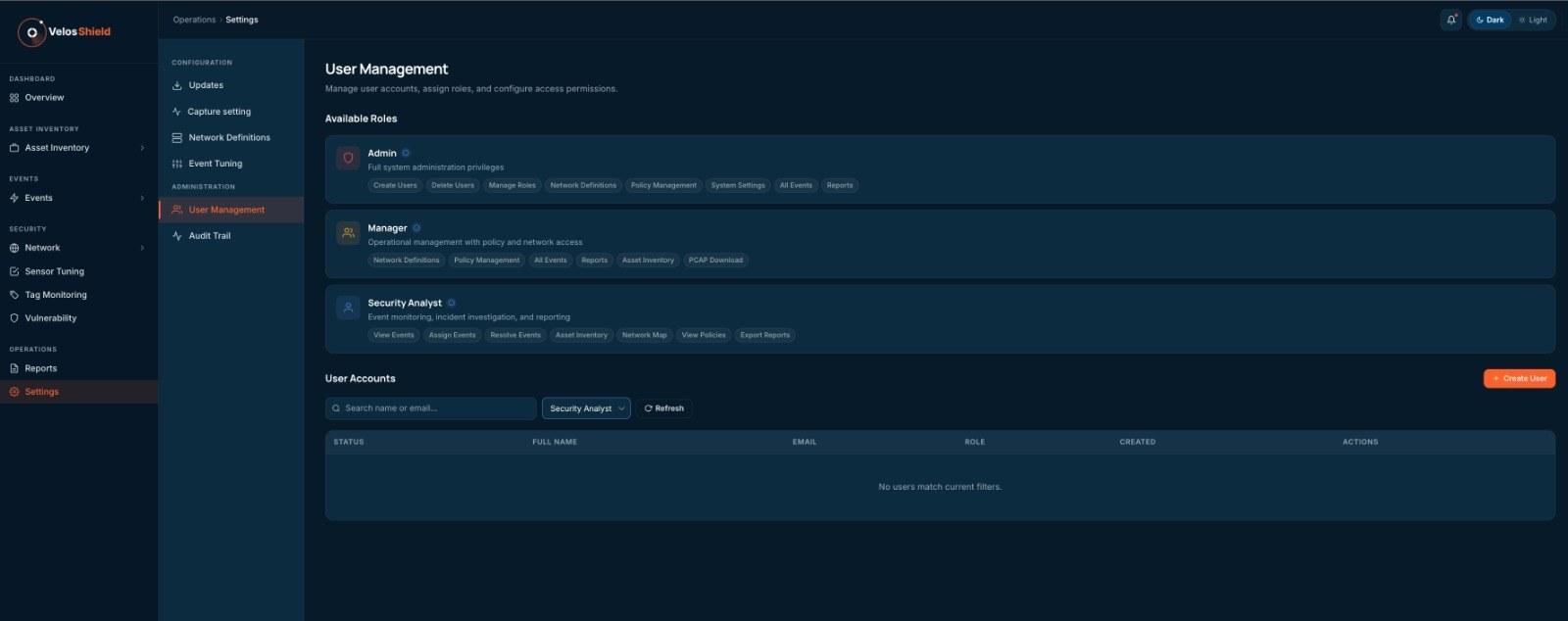
Figure 24. Settings: User Management.
Available roles
| Role | What this person can do |
|---|---|
| Admin | Full control of the system. |
| Manager | Manage day-to-day operations, including policies and network settings. |
| Security Analyst | Watch events, investigate incidents, and create reports. |
Always review what a role can do before you give it to someone.
Create a new user
- Select Create User.
- Enter the person’s Full Name and Email.
- Choose the right Role.
- Set a Temporary Password, or generate one, as shown in the dialog.
- Select Create User, then send the login details to the person through an approved, secure channel.
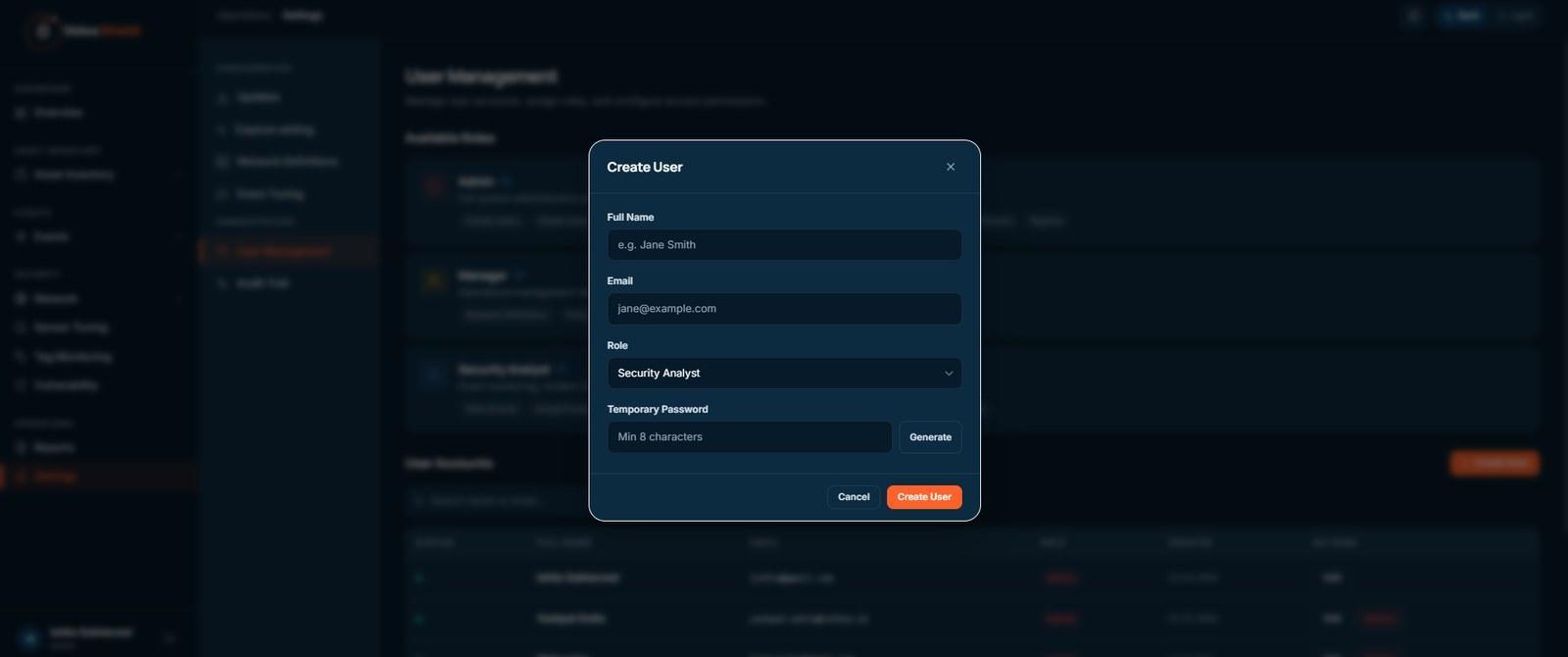
Figure 25. Create User Dialog.
Audit Trail
The Audit History is a record of actions taken in the system, such as events that were tuned. Use it to see what changed and when.